January 12, 2025

Operating a Double-Acting Pneumatic Cylinder with a Manual Hand Lever

Introduction

A double-acting pneumatic cylinder is a commonly used actuator in industrial automation, capable of extending and retracting using compressed air. Unlike single-acting cylinders, which rely on a spring for retraction, double-acting cylinders use air pressure for both movements.

In this article, we will discuss the working principle, components, and pneumatic circuit design for operating a double-acting cylinder using a manual hand lever valve.

Working Principle of a Double-Acting Cylinder

  • Two air ports: One for extension and one for retraction.
  • Air pressure controls both movements, making it stronger and more reliable than a single-acting cylinder.
  • It is ideal for continuous or repetitive motion applications in automation.

Applications of Double-Acting Cylinders

Lifting and lowering in material handling
Clamping and holding in machining processes
Punching and pressing in manufacturing
Robotic arm movements

Components Required

To operate a double-acting cylinder using a manual hand lever, the following components are required:

  1. Double-Acting Cylinder – The actuator that moves in two directions.
  2. 5/2-Way Hand Lever Valve – A manually operated directional control valve.
  3. Air Compressor – Provides compressed air for operation.
  4. Flow Control Valves (Optional) – Regulates the speed of movement.
  5. Air Tubing and Fittings – Connects all components in the pneumatic circuit.

Pneumatic Circuit Design

Step 1: Understanding the 5/2-Way Hand Lever Valve

A 5/2-way valve has:

  • 5 ports:
    • P – Air supply
    • A – Cylinder extension port
    • B – Cylinder retraction port
    • R1, R2 – Exhaust ports
  • 2 positions:
    • Position 1 (Lever Left) – Air flows to port A, extending the cylinder.
    • Position 2 (Lever Right) – Air flows to port B, retracting the cylinder.

Step 2: Circuit Diagram and Working

  1. When the hand lever is pushed forward:

    • The valve shifts, allowing compressed air into port A.
    • The piston extends.
    • Air from port B exits through the exhaust.
  2. When the hand lever is pulled backward:

    • The valve shifts to the opposite position.
    • Air enters port B, causing the piston to retract.
    • Air from port A exits through the exhaust.

Implementation in AutoSIM 200

To simulate this circuit in AutoSIM 200, follow these steps:

  1. Open AutoSIM 200 and create a new project.
  2. Add components from the pneumatic library:
    • Double-acting cylinder
    • 5/2-way manual hand lever valve
    • Air supply
  3. Connect the components using air tubing.
  4. Run the simulation and operate the hand lever to observe the cylinder’s extension and retraction.

Conclusion

A double-acting cylinder with a manual hand lever valve provides precise control for industrial applications. The 5/2-way valve allows easy switching between extension and retraction, making it ideal for mechanical control in automation systems.


Click here to watch video https://youtu.be/vMmYtsSlBro

January 11, 2025

S7-1500 Hardware Configuration Using TIA Portal V19

 Introduction

The Siemens S7-1500 series PLCs are powerful automation controllers designed for high-performance industrial applications. Configuring an S7-1500 PLC in TIA Portal V19 is an essential step in developing a structured and efficient automation system.

This article provides a step-by-step guide to configuring S7-1500 hardware, including adding a PLC, configuring I/O modules, setting up communication, and downloading the configuration to the hardware.

Step 1: Open TIA Portal V19 and Create a New Project

  1. Launch TIA Portal V19.
  2. Click on "Create New Project" and enter:
    • Project Name (e.g., "S7-1500_Config")
    • Path to Save the Project
    • Project Description (Optional)
  3. Click "Create" to open the main project workspace.

Step 2: Adding the S7-1500 PLC to the Project

  1. In Project View, navigate to "Devices & Networks".
  2. Click "Add New Device".
  3. Under "Controller", select "SIMATIC S7-1500".
  4. Choose the specific CPU model (e.g., CPU 1511-1 PN).
  5. Click "Add" to insert the selected PLC into the project.

Step 3: Configuring the PLC Hardware

1. Set Up the Rack and CPU Configuration

  • The rack layout appears in the device configuration window.
  • Ensure the CPU is placed in Slot 1 (default for S7-1500).

2. Adding I/O Modules

  1. Click on the rack’s empty slots to add I/O modules.
  2. Select the appropriate digital/analog input/output modules from the hardware catalog (e.g., SM 521 DI 16x24VDC for digital inputs).
  3. Drag and drop modules into the rack slots as per the system requirements.

3. Configuring I/O Addresses

  1. Select an I/O module and go to the "Properties" tab.
  2. Assign input and output addresses (e.g., Q0.0, I0.0).
  3. Ensure that the addresses do not overlap with other modules.

Step 4: Network Configuration and IP Address Assignment

1. Open the PLC Properties

  1. Select the CPU module and go to "Properties" → "PROFINET Interface".
  2. Click on "Ethernet Addresses".

2. Set the IP Address

  • Assign a unique IP address to the PLC (e.g., 192.168.0.1).
  • Set the Subnet Mask (e.g., 255.255.255.0).

3. Configure PROFINET or Other Communication Protocols

  • If using PROFINET, ensure all connected devices (HMIs, Drives, Remote I/Os) are in the same IP range.
  • If required, set up PROFIBUS or Modbus TCP communication.

Step 5: Compile and Download the Configuration

  1. Click "Compile" to check for errors.
  2. If no errors, click "Download to Device".
  3. Choose the communication interface (e.g., PN/IE for PROFINET).
  4. Click "Start Search" to find connected hardware.
  5. Select the PLC and download the configuration.
  6. Set the PLC to RUN mode for execution.

Step 6: Testing and Monitoring the Configuration

  1. Open "Online & Diagnostics" in TIA Portal.
  2. Check the status of the PLC and I/O modules.
  3. Use "Force Table" to manually test inputs and outputs.
  4. Monitor real-time data and diagnostics to ensure proper operation.

Conclusion

Configuring an S7-1500 PLC in TIA Portal V19 is a crucial step in industrial automation. By following this guide, you can:


Set up an S7-1500 CPU and I/O modules
Assign correct I/O addresses
Configure PROFINET communication
Download and test the configuration

This structured approach ensures efficient PLC operation and seamless communication with field devices.

Click here for video 

https://youtu.be/_ddZ2bbEYUQ

January 10, 2025

Single-Acting Pneumatic Cylinder Operation with Push Button

Introduction

A single-acting pneumatic cylinder is a commonly used actuator in automation that operates using compressed air in one direction while relying on a spring or external force for retraction. This article explains the working principle, components, and circuit design for operating a single-acting cylinder using a push button.

Working Principle of a Single-Acting Cylinder

  • A single-acting cylinder has one air inlet port.
  • When compressed air is supplied, the piston extends.
  • When the air is released, a spring inside the cylinder retracts the piston.
  • This makes it energy-efficient for applications requiring unidirectional force.

Applications of Single-Acting Cylinders

 Clamping and holding mechanisms
 Part ejection in assembly lines
 Light-duty pressing operations

Components Required

To operate a single-acting cylinder using a push button, we need the following components:

  1. Single-Acting Cylinder – The actuator that moves in one direction.
  2. Push Button Valve (3/2 Way Valve) – A manually operated valve that controls airflow.
  3. Air Compressor – Supplies compressed air.
  4. Flow Control Valve (Optional) – Regulates the speed of extension.
  5. Air Tubing and Fittings – Connects the components.

Pneumatic Circuit Design

Step 1: Understanding the Valve Function

A 3/2-way push button valve has:

  • 3 ports: Air Supply (P), Cylinder Port (A), and Exhaust (R).
  • 2 positions:
    • Default Position: Cylinder is retracted (air is blocked, exhaust open).
    • Pressed Position: Air flows to the cylinder, causing it to extend.

Step 2: Circuit Diagram and Working

  1. Initial State (Button Released):

    • The spring in the cylinder retracts the piston.
    • Air does not enter the cylinder.
  2. When Push Button is Pressed:

    • The valve shifts, allowing compressed air to enter the cylinder.
    • The piston extends and performs work.
  3. When Button is Released:

    • The valve returns to its normal position.
    • Air escapes through the exhaust, and the spring retracts the piston.

Implementation in AutoSIM 200

To simulate this circuit in AutoSIM 200, follow these steps:

  1. Open AutoSIM 200 and select a new project.
  2. Add components from the pneumatic library:
    • Single-acting cylinder
    • 3/2-way push button valve
    • Air supply
  3. Connect the components using air tubing.
  4. Run the simulation and press the push button to observe the cylinder extending and retracting.

Conclusion

The single-acting pneumatic cylinder with a push button is a simple and effective automation solution. Using a 3/2-way valve, the cylinder extends when the button is pressed and retracts when released. This setup is widely used in manufacturing, assembly, and material handling applications.

Click here to watch video https://youtu.be/jeOh1sOgq1o

January 9, 2025

PLC Programming Blocks: OB, FC, FB, and DB

Introduction

Programmable Logic Controllers (PLCs) are essential in industrial automation, and their efficient programming relies on different types of program blocks. In Siemens TIA Portal (Step 7) or similar PLC software, program organization is crucial for creating structured, reusable, and efficient control logic.

In this article, we will explore the four main types of PLC program blocks used in Siemens PLC programming:

  1. OB (Organization Block) – Main program execution blocks
  2. FC (Function) – Reusable logic without memory retention
  3. FB (Function Block) – Reusable logic with memory retention
  4. DB (Data Block) – Data storage for variables

Understanding these blocks will help you write better PLC programs that are scalable, modular, and easy to maintain.

1. Organization Block (OB)

What is an OB?

  • Organization Blocks (OBs) control the execution of a PLC program.
  • They define the priority, scan cycle, and error handling of a PLC.
  • The main cycle OB (OB1) is executed cyclically, while other OBs handle specific events.

Types of OBs

  1. OB1 – Main Program Cycle

    • This is the main cyclic program execution block.
    • The PLC continuously scans OB1 as long as it is in RUN mode.
    • All logic is usually called within OB1 using FCs and FBs for modular programming.
  2. OB10-OB17 – Time-Triggered OBs

    • These execute at specific time intervals.
    • Useful for timed operations, such as data logging or periodic checks.
  3. OB20-OB23 – Hardware Interrupt OBs

    • Triggered by hardware interrupts like sensor inputs.
    • Used for real-time critical operations.
  4. OB30-OB38 – Cyclic Interrupt OBs

    • Execute at fixed time intervals.
    • Ensure consistent execution of specific tasks.
  5. OB40-OB47 – Process Alarm OBs

    • Triggered by process alarms.
    • Used for fault handling.
  6. OB80-OB87 – Fault Handling OBs

    • Handle errors such as division by zero, power failure, or module faults.
    • Ensures the PLC can recover from errors gracefully.

2. Function (FC)

What is an FC?

  • Functions (FCs) are reusable blocks of logic that do not retain memory after execution.
  • They can take input parameters and return output values, but they do not have an internal memory.
  • Best suited for calculations, math operations, and temporary logic.

Key Features of FCs

No internal memory (stateless)
Accepts input parameters and returns output parameters
Used for simple, reusable logic

Use Case for FCs

  • Mathematical calculations
  • Signal processing
  • Data conversions


3. Function Block (FB)

What is an FB?

  • Function Blocks (FBs) are similar to FCs but retain memory (stateful execution).
  • Used when logic needs to store data across multiple cycles.
  • They require a Data Block (DB) for memory storage.

Key Features of FBs

Have internal memory (can store values between scans)
Require an Instance Data Block (DB)

Used for complex logic, motor control, and PID control

Example: FB for Motor Control

Use Case for FBs

  • Motor start/stop circuits
  • PID controllers
  • Alarm handling

4. Data Block (DB)

What is a DB?

  • Data Blocks (DBs) store global or instance-specific data.
  • Can be used to store sensor values, setpoints, or configuration parameters.
  • There are two types of DBs:
    • Global DB – Shared across multiple functions.
    • Instance DB – Used with FBs to store internal memory.

Best Practices for Using OBs, FCs, FBs, and DBs

Use OB1 only for function calls – Keep OB1 clean by calling FCs and FBs instead of writing logic directly inside it.
Use FCs for stateless logic – If the function does not need memory, use an FC to keep programs modular.
Use FBs for stateful operations – If the function needs to store past values, use an FB with an instance DB.
Organize data using DBs – Store configuration parameters in DBs to make programs easier to modify.

Conclusion

Understanding OBs, FCs, FBs, and DBs is essential for writing structured, efficient, and scalable PLC programs.

  • OBs define the execution cycle and event handling.
  • FCs provide reusable, stateless logic.
  • FBs allow memory retention for stateful processes.
  • DBs store important process data.

By using these blocks strategically, you can build flexible automation solutions that are easy to maintain and expand. 


Click here to watch video 

https://youtu.be/BmCGuHfOjp0

January 8, 2025

PRA remote IO SCANNING using Schneider eco structure control expert platform

PRA Remote IO Scanning Using Schneider EcoStruxure Control Expert

Introduction

In modern industrial automation, Remote I/O (RIO) Scanning plays a crucial role in optimizing system performance by enabling communication between a Programmable Logic Controller (PLC) and remote I/O modules. Schneider Electric's EcoStruxure Control Expert (formerly Unity Pro) provides powerful tools to configure and manage PRA (Process Remote Automation) Remote I/O Scanning for efficient and seamless data exchange.

This article explores the step-by-step process of setting up PRA Remote I/O Scanning using Schneider’s EcoStruxure Control Expert and highlights key configurations for ensuring smooth communication.


Understanding PRA Remote IO Scanning

Remote I/O scanning allows a PLC to communicate with distributed I/O modules over a network, reducing wiring complexity and improving flexibility. This is essential for large-scale industrial applications where I/O devices are spread across different locations.

With Schneider Electric’s PRA Remote I/O Scanning, the PLC continuously reads inputs and writes outputs to remote I/O devices over a communication protocol such as Ethernet/IP, Modbus TCP, or CANopen.


Step-by-Step Configuration in EcoStruxure Control Expert

Step 1: Open EcoStruxure Control Expert & Create a New Project

  1. Launch EcoStruxure Control Expert.
  2. Select your Schneider Electric PLC model (e.g., Modicon M580, M340).
  3. Create a new project and configure the hardware settings.

Step 2: Configure the PLC for Remote I/O Communication

  1. Open the Hardware Configuration Tab

    • Navigate to the "Configuration" section.
    • Select the PLC backplane and configure the CPU.
  2. Add an Ethernet Network Module

    • Right-click on the CPU rack and add an Ethernet module (e.g., BMXNOC0401 for M340 or BME NOC 0311 for M580).
    • Configure the IP Address, Subnet Mask, and Gateway for the Ethernet module.

Step 3: Adding and Configuring the Remote I/O Scanner

  1. Open the DTM Browser

    • In EcoStruxure Control Expert, go to "DTM Browser" and add a new Remote I/O scanner under the Ethernet module.
  2. Define Remote I/O Device Settings

    • Assign a device name and set the IP address of the Remote I/O module.
    • Ensure that the network settings match the PLC’s Ethernet configuration.
  3. Scan and Detect Remote I/O Modules

    • Click "Scan Devices" to detect the connected Remote I/O modules.
    • The system will automatically list the available PRA remote I/O devices.

Step 4: Configuring Remote I/O Modules

  1. Assign I/O Modules to the Remote I/O Scanner

    • Select the PRA Remote I/O module (e.g., BMXCRA31210, BMXDDI3202) from the device list.
    • Define input and output mappings.
    • Set up any required diagnostics and alarms for real-time monitoring.
  2. Validate the I/O Mapping

    • Check the status of connected I/O devices.
    • Ensure that all input and output addresses are correctly assigned.

Step 5: Program and Test the I/O Scanning

  1. Write a Simple Ladder Logic Program

    • Create a basic Ladder Logic or Structured Text program to test the remote I/O.
    • Example: A digital input from a remote module turns on a digital output in the PLC.
  2. Build and Transfer the Project to the PLC

    • Compile the project and download it to the PLC.
    • Switch the PLC to RUN Mode.
  3. Monitor I/O Status

    • Open the EcoStruxure Control Expert Online Mode to view real-time I/O updates.
    • Verify that the remote I/O signals are functioning as expected.

Troubleshooting Tips

  • Communication Failure: Check the Ethernet cable, IP configuration, and firewall settings.
  • I/O Not Updating: Ensure that I/O modules are correctly mapped in the Remote I/O Scanner.
  • PLC Not Detecting Remote I/O: Perform a hardware scan and ensure the correct firmware version is installed.

Conclusion

Configuring PRA Remote I/O Scanning in Schneider EcoStruxure Control Expert allows seamless data exchange between a PLC and remote I/O devices, enabling efficient and reliable industrial automation. By following the step-by-step setup, industries can enhance their control systems, reduce wiring costs, and improve real-time monitoring of field devices.


Click here to watch video

https://youtu.be/8jYMe9Y6NTU


January 7, 2025

Scheider ATV 320 drive communication with Schneider PLC M 340 using control expert

 To establish communication between a Schneider ATV320 drive and an M340 PLC using Control Expert (formerly Unity Pro), follow these steps:

Hardware Setup: Connect the ATV320 to the M340 PLC using Modbus RTU (RS485) or Modbus TCP/IP (Ethernet) based on the available communication options. Ensure proper wiring, IP addressing (for Ethernet), or serial communication parameters (for RS485). ATV320 Configuration: Configure communication settings (Modbus address, baud rate, parity, or IP address) via the drive's keypad, SoMove software, or Web Server. Set the control mode to enable network control. M340 PLC Configuration in Control Expert: Create a new project and configure the communication module (e.g., BMXNOC for Ethernet or serial communication modules for RS485). Define the ATV320 as a Modbus device (Slave for RTU or TCP/IP). Control and Monitoring Setup: Map the required Modbus registers for control (start/stop, speed setpoint) and feedback (status, frequency). Use READ_VAR and WRITE_VAR functions or Schneider’s prebuilt DFBs (Derived Function Blocks) for communication logic. Testing and Validation: Verify communication using diagnostic tools in Control Expert. Test the control and feedback by sending commands to the drive and reading its status.

Watch video here
https://youtu.be/NKdheHjv1P8

January 6, 2025

Top Applications of Pneumatic Systems in Modern Industry

Pneumatic systems are an integral part of modern industry, offering efficient, reliable, and cost-effective solutions for a wide range of applications. These systems utilize compressed air to perform mechanical work, making them ideal for industries that require automation, precision, and safety. In this article, we explore the top applications of pneumatic systems in modern industry and how they drive innovation and efficiency.


1. Industrial Automation

Industrial automation is one of the most prominent applications of pneumatic systems. Pneumatic actuators, cylinders, and valves are used in assembly lines, robotic arms, and conveyor systems.

  • Robotics: Pneumatics powers robotic grippers for precision handling of components.
  • Packaging: Automated packaging machines rely on pneumatic systems for tasks such as sealing, labeling, and sorting.
  • Material Handling: Pneumatic systems move heavy or delicate materials with ease, reducing the risk of damage.

Key Benefit: The reliability and quick response of pneumatic systems make them indispensable in high-speed production environments.


2. Transportation and Automotive Industry

Pneumatics plays a critical role in the transportation and automotive sectors.

  • Air Brakes: Trucks, buses, and trains utilize air brake systems for reliable and safe stopping power.
  • Vehicle Assembly: Pneumatic tools are used in car manufacturing for tasks like fastening, painting, and welding.
  • Suspension Systems: Pneumatic air suspension improves ride quality and load handling.

Key Benefit: Pneumatic systems offer safety and precision in vehicle operation and manufacturing.


3. Food and Beverage Industry

The food and beverage industry demands high levels of hygiene and precision, making pneumatic systems an ideal choice.

  • Filling Machines: Pneumatic systems control the precise filling of bottles and packages.
  • Processing Equipment: Pneumatics ensures contamination-free handling of food products.
  • Packaging: Applications like vacuum sealing and carton folding rely on pneumatic solutions.

Key Benefit: Compressed air is clean and safe, ensuring compliance with food safety standards.


4. Healthcare and Medical Devices

Pneumatics is widely used in the healthcare sector for its reliability and quiet operation.

  • Medical Tools: Devices like dental drills and surgical instruments are powered by compressed air.
  • Patient Care: Pneumatic systems are used in ventilators and hospital beds for smooth operation.
  • Pharmaceuticals: Pneumatics control equipment used in drug manufacturing and packaging.

Key Benefit: Pneumatic systems provide precision and safety in critical healthcare applications.


5. Construction and Mining

The rugged environment of construction and mining benefits significantly from pneumatic tools and equipment.

  • Jackhammers: Pneumatic hammers break through concrete and rock efficiently.
  • Drills: Air-powered drills are used for underground mining operations.
  • Lifting Equipment: Pneumatic hoists provide safe and efficient material handling.

Key Benefit: Durability and power make pneumatics ideal for heavy-duty tasks.


6. Textile Industry

In textile manufacturing, pneumatic systems are used for automation and precision control.

  • Weaving Machines: Pneumatics controls the looms for consistent fabric production.
  • Dyeing: Pneumatic valves regulate dyeing processes with high accuracy.
  • Cutting and Stitching: Air-powered tools enhance productivity in garment production.

Key Benefit: Improved efficiency and precision in textile processes.


7. Energy Sector

Pneumatic systems support energy production and distribution processes.

  • Oil and Gas: Pneumatic actuators and valves control pipelines and drilling equipment.
  • Renewable Energy: Wind turbines use pneumatic braking systems for speed control.

Key Benefit: Reliability in critical energy applications.

January 4, 2025

The Basics of Pneumatics: Understanding Compressed Air Systems

Pneumatics is a fascinating field of engineering that leverages compressed air to perform mechanical work. From industrial automation to everyday tools like air-powered drills, pneumatic systems are a cornerstone of modern technology. This article explores the basics of pneumatic systems, their components, and their applications.


What Is a Pneumatic System?

A pneumatic system uses compressed air to generate mechanical motion. Unlike hydraulics, which rely on liquids, pneumatics employs air or other gases. These systems are popular because air is abundant, clean, and easy to compress.


Key Components of Pneumatic Systems

  1. Air Compressor
    The air compressor is the heart of a pneumatic system. It takes in atmospheric air, compresses it, and delivers it at high pressure for various uses. Compressors are available in types like reciprocating, rotary screw, and centrifugal models.

  2. Air Storage Tank
    The compressed air is stored in an air receiver tank to stabilize pressure and ensure a steady supply. This component also helps reduce the workload on the compressor.

  3. Valves
    Pneumatic valves control the flow, pressure, and direction of compressed air. Types include:

    • Directional control valves: Manage airflow direction.
    • Pressure relief valves: Protect the system from overpressure.
    • Flow control valves: Regulate airflow rate.
  4. Actuators
    Pneumatic actuators convert compressed air into mechanical motion, such as linear or rotary motion. Examples include cylinders (linear actuators) and rotary actuators.

  5. Air Treatment Units
    To ensure system longevity, air must be clean and dry. Filters, regulators, and lubricators (collectively called FRLs) prepare air for use.


How Pneumatic Systems Work

  1. Air Compression: The compressor compresses ambient air.
  2. Storage: The air is stored in a tank at high pressure.
  3. Control: Valves regulate the airflow to match system requirements.
  4. Actuation: Actuators perform work, such as lifting, pushing, or rotating.
  5. Exhaust: After use, the air is released into the atmosphere.

Advantages of Pneumatic Systems

  • Cost-Effective: Air is free, and components are relatively inexpensive.
  • Safe: Pneumatic systems are less prone to catastrophic failure compared to hydraulic systems.
  • Clean: Ideal for food and pharmaceutical industries where contamination is a concern.
  • Energy-Efficient: Modern systems incorporate energy recovery mechanisms to enhance efficiency.

Applications of Pneumatics

  • Industrial Automation: Robots, conveyors, and assembly lines.
  • Transportation: Air brakes in trucks and trains.
  • Healthcare: Dental drills and ventilators.
  • Construction: Pneumatic tools like nail guns and jackhammers.

January 3, 2025

Single tank level controlling with alarm controlling (S7-300 LAD).

PLC Program: Single Tank Level Control with Alarm Acknowledgment

Problem Description:

Design a PLC-based control system to monitor and maintain the water level in a single tank. The system should:

  • Automatically control the water filling process.

  • Trigger a high-level alarm when the tank reaches its maximum threshold.

  • Include an acknowledgement button to reset the alarm after it is triggered.

Problem Diagram


Problem Solution

To solve this problem, we are using PLC programming for automatic control of the tank water level. Two level sensors are used for measurement:

  • One sensor is placed at the low level.

  • The second sensor is placed at the high level.

A feeding valve is used for filling the tank, and a discharge valve is used for emptying the tank. Both valves are controlled automatically based on sensor inputs:

  • When the water level falls below the low-level sensor, the feeding valve is activated to start filling the tank.

  • When the water level reaches the high-level sensor, the discharge valve is activated to start emptying the tank.


Program

Here is PLC program for single tank level controlling with alarm controlling using PLC.

List of inputs/outputs

Digital inputs:-

Main switch:-I1.1

Start button:-I0.0

Stop button:-I0.1

High level:-I0.2

Low level:-I0.3

Feeding valve:-Q0.1

Discharge valve:-Q0.2


Digital outputs:-

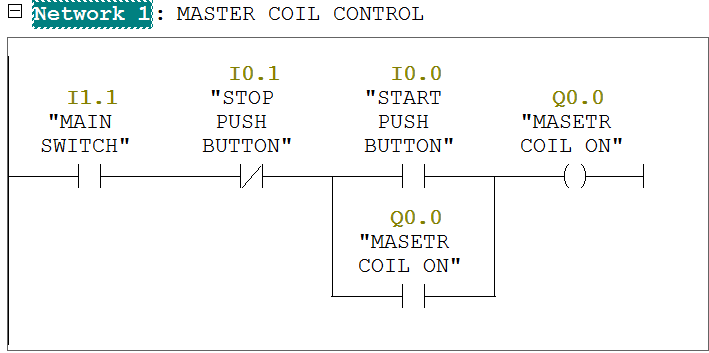
Master coil:-Q0.0

Feeding valve:-Q0.1

Discharge valve:-Q0.2

Mixer motor:-Q0.3


Ladder diagram for single tank level controlling with alarm controlling using PLC.


https://plcscadaacademy.blogspot.com/


Program Description


In network 1 we tend to used latching circuit for master coil ON (Q0.0) output.it will be started by pressing START Push button (I0.0) and stop by pressing STOP pushbutton (I0.1).


When cycle are going to be begin then system check level of the tank. If tank level is low then then feeding method can begin and tank level is high then Discharge cycle can begin.


Here we've taken NO contact for each sensors within the program for simplicity. It will be done by relay logic in field otherwise you will choose such variety of sensors.


In network 2,when tank can observe low level then low level sensor (I0.2) is going to be activated and feeding cycle are going to be ON. Here we've taken NC contact of high level sensor (I0.3) therefore once PLC can observe high level then it'll STOP feeding cycle.


In network 3,when tank can observe high level then high level sensor (I0.3)  is  to be activated and discharging cycle are going to be ON. Here we've taken NC contact of low level sensor (I0.2) therefore once PLC can observe low level then it'll STOP discharge cycle.

In network 4, mixer motor (Q0.3) will remain ON when discharge valve is ON.

In network 5 when high level (I0.3) is detected, alarm (Q0.4) will be activated.

In network 6 when acknowledge button is pressed, alarm will be reset.


Note:-Application is only for learning and educational purpose .Above application may be different from actual application. This application can be done in other PLC also. Users are responsible for correct operation of the PLC system and for any possible injuries and or material damages resulting from the use of this program. It is necessary to take care of safety during implementation, installation, maintenance and operation.


All parameters and graphical representations considered in this example are for explanation purpose only, parameters or representation may be different in actual applications. Also all interlocks are not considered in the application.


January 2, 2025

3 Phase motor control (Forward Reverse) using TIA portal (FBD language).

This is PLC Program for 3 Phase Motor control (Forward/Reverse).


Problem Description

Write the PLC program for 3 phase motor control (Forward Reverse) in TIA PORTAL using FBD language.


Problem Diagram

Problem Solution

In this case we'd like to control motor in each direction which will be attainable solely by forward/Reverse negative feedback circuit or Logic.

Here we tend to solve this downside by easy Forward/Reverse management Logic.

So here we are going to take into account one 3 phase motor for Forward and Reverse Operation.

And we can take 2 contactors or relays for control as a result of we'd like 2 totally different directions here.

Also we must always take into account 3 push buttons for forward, reverse and stop operate.

So here operator can use FWD PB for forward operation, REV PB for reverse operation and STOP PB for stop operate.

Program

Here is PLC program for 3 Phase Motor control (Forward/Reverse).

List of Inputs/Outputs

Inputs List:-

FWD PB-I0.0

REV-I0.1

STOP PB-I0.2

Motor Trip-I0.3

Outputs List:-

Forward motor contactor-Q0.0

Reverse motor contactor-Q0.1


FBD diagram for 3 Phase Motor control (Forward/Reverse).


Program Description

In this application we will use Siemens S7-300 PLC and TIA PORTAL Software for programming. We can also design this logic with relay circuit.

Network 1:-In this network forward motor contactor (Q0.0) can be start by pressing FBD PB (I0.0) and can be stopped by pressing STOP PB (I0.2).

Network 2:-In this network reverse motor contactor (Q0.1) can be started by pressing REV PB(I0.1) and can be stopped by pressing STOP PB (I0.2).


Note:-Application is only for learning purpose .Above application may be different from actual application. This application can be done in other PLC also. Users are responsible for correct operation of the PLC system and for any possible injuries and or material damages resulting from the use of this program. It is necessary to take care of safety during implementation, installation, maintenance and operation.


All parameters and graphical representations considered in this example are for explanation purpose only, parameters or representation may be different in actual applications. Also all interlocks are not considered in the application.


December 31, 2024

3 Phase motor control (Forward Reverse) using TIA portal (Ladder language).

This is PLC Program for 3 Phase Motor control (Forward/Reverse).


Problem Description

Write the PLC program for 3 phase motor control (Forward Reverse) in TIA PORTAL using LAD language.


Problem Diagram

Problem Solution

In this case we'd like to control motor in each direction which will be attainable solely by forward/Reverse negative feedback circuit or Logic.

Here we tend to solve this downside by easy Forward/Reverse management Logic.

So here we are going to take into account one 3 phase motor for Forward and Reverse Operation.

And we can take 2 contactors or relays for control as a result of we'd like 2 totally different directions here.

Also we must always take into account 3 push buttons for forward, reverse and stop operate.

So here operator can use FWD PB for forward operation, REV PB for reverse operation and STOP PB for stop operate.

Program

Here is PLC program for 3 Phase Motor control (Forward/Reverse).

List of Inputs/Outputs

Inputs List:-

FWD PB-I0.0

REV-I0.1

STOP PB-I0.2

Motor Trip-I0.3

Outputs List:-

Forward motor contactor-Q0.0

Reverse motor contactor-Q0.1


Ladder diagram for 3 Phase Motor control (Forward/Reverse).


Program Description

In this application we will use Siemens S7-300 PLC and TIA PORTAL Software for programming. We can also design this logic with relay circuit.

Network 1:-In this network forward motor contactor (Q0.0) can be start by pressing FBD PB (I0.0) and can be stopped by pressing STOP PB (I0.2).

Network 2:-In this network reverse motor contactor (Q0.1) can be started by pressing REV PB(I0.1) and can be stopped by pressing STOP PB (I0.2).


Note:-Application is only for learning purpose .Above application may be different from actual application. This application can be done in other PLC also. Users are responsible for correct operation of the PLC system and for any possible injuries and or material damages resulting from the use of this program. It is necessary to take care of safety during implementation, installation, maintenance and operation.


All parameters and graphical representations considered in this example are for explanation purpose only, parameters or representation may be different in actual applications. Also all interlocks are not considered in the application.