Learn PLC programming,Free SCADA programming, Download free PLC books, Free manuals,PLC tutorials,PLC presentation.
March 19, 2019
March 18, 2019
Portal view in TIA portal software.
Problem Description:-
Explain Portal view in TIA portal software.
Diagram:-
![]() |
Description:-
The TIA portal can manage all data in the project in single platform. There are two views in the software which can be change any time.
Two views of the TIA portal are 1) Portal view and 2) Project view.
Portal view:-
Task oriented and fast project starting facilities.
Project view:-
Hierarchical structure, all parameters and data available in single view.
In this view user can do following configuration,
Configure devices
Create project
PLC programming
Project migration
Change user interface language
Open project
Change the view of the software.
Note:-All explanation, representation are for learning purpose.
February 8, 2019
Run time advanced configuration in TIA portal
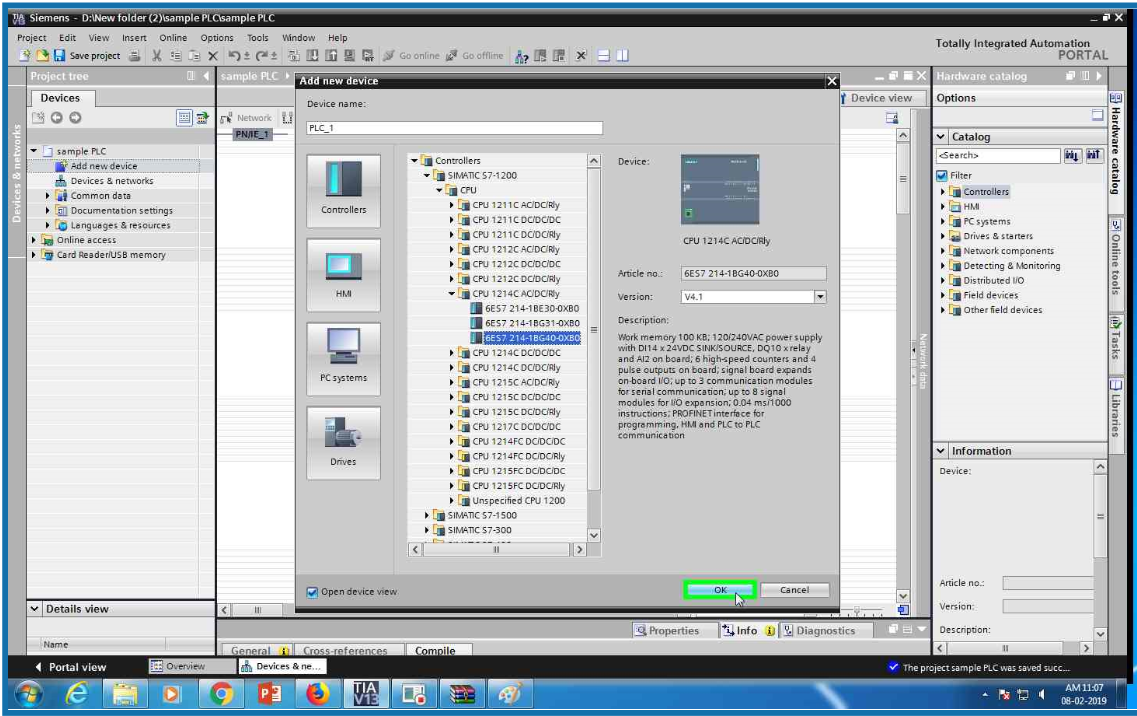
Open TIA portal and click on add new device
Select controller family from the list
Select CPU form the S7-1200 family
From the list select CPU 1214 AC/DC/RLY PLC
Select serial no 6ES7 214-1BG40-0XB0 from the list (this is for example only you ca select CPU which you have).
Click OK and done! PLC configuration.
Again add new device and open PC system family from the list
Select PC general from the list
Select PC station
Click OK
Add IE general from the hardware catalog.
Add it
Now add Wincc RT advanced from the catalog.
Select network view and check both IP address
Set the connection between two devices.Now RT advanced configuration completed.
Run time advanced configuration in TIA portal
Run time advanced
configuration in TIA portal
Open
TIA portal and click on add new device
Select
controller family from the list
Select
CPU form the S7-1200 family
From
the list select CPU 1214 AC/DC/RLY PLC
Select
serial no 6ES7 214-1BG40-0XB0 from the list (this is for example only you ca
select CPU which you have).
Click
OK and done! PLC configuration.
Again
add new device and open PC system family from the list
Select
PC general from the list
Select
PC station
Click
OK
Add
IE general from the hardware catalog.
Add
it
Now
add Wincc RT advanced from the catalog.
Select
network view and check both IP address
Set
the connection between two devices.Now RT advanced configuration completed.
February 1, 2019
S7-1200 PLC configuration,example creation,monitoring and downloaiding in the PLC.
First, we arechoosing TIA Portal V13 from our Start Menu anddouble click and open the program.
Here is our portalview. Now we need to choose Create new project icon. You can change yourproject name alsoyour path and you can add yourcomments. And clickthe create button.
We completed Start section. Now we need to configure our device. First clickconfigure a device.
Choose add new device. And click SIMATICS7-1200 CPU its model and type respectively. Your CPU type can change from one to another. So you need to control on your PLC Training Set. Its CPU panel willgive needed information to you. When you are confident to select true choice. Click add button. And go on.
The CPU added. You can see at the following figure.Now choose Program blocks and clickdouble Main [OB1].
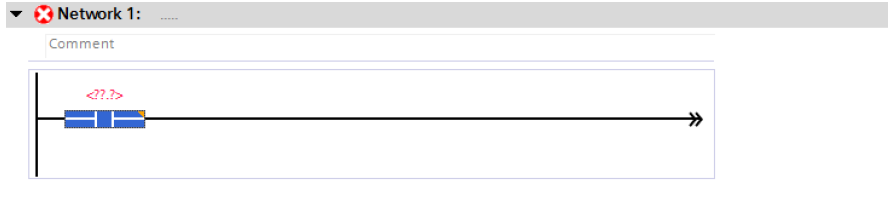
Here is the LADDER diagram window. Now we are ready to add our operations such as bit logic, timer,counter,comparator etc.We will use Basic Instructions part
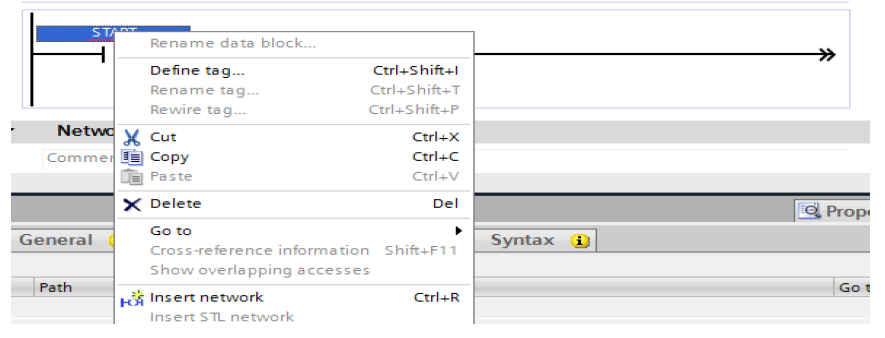
Click right button on mouse. And choose Define tag.
Specify your information and click the Define button. Start button’s name is I0.0
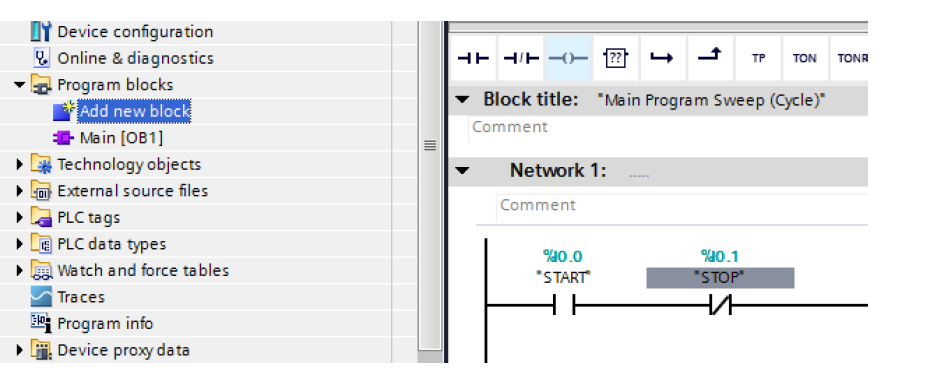
Do the same thinglike START button withSTOP button. Stop button’sname will be I0.1 This is your choice.You have no constraints on it.
Now double click Add new block. Because we need Timer for our problem.
/////////////////////////////////////////////////////////////////////////////////////////////////////////////
Choose Data Block. FromType, so you can choose whatever you need. Andwe
choosed IEC_Timer. And click OK.
/////////////////////////////////////////////////////////////////////////////////////////////////////////////
Choose Data Block. FromType, so you can choose whatever you need. Andwe
choosed IEC_Timer. And click OK.
Our Data_block_1[DB1] is added. Double clickMain [OB1] and turn back our LAD diagram.
Add TON timer relayfrom Basic Instructions isselected. And clickunknown information on and under the timer. Our time is milisecondat our programme. You need to giveattention. Also we will giveits label ‘’Data_block_1’’. Youcan see our explanations at the following figures.
/////////////////////////////////////////////////////////////////////////////////////////////////////////////////////////
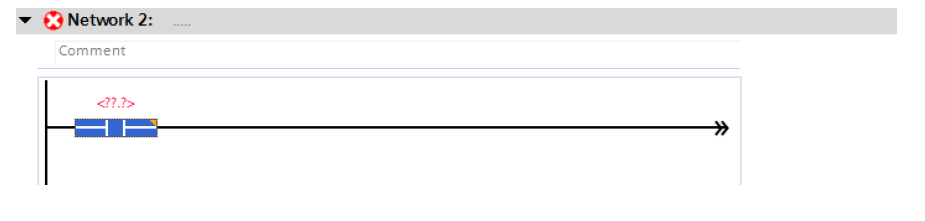
Now we need to use Network 2.
////////////////////////////////////////////////////////////////////////////////////////////////////////////////////
Add new button. Its our timer’s output contact.
We will add output coil. Its label will be MOTOR.
______________________________________________________________________________
Click right with Mouse and specify its properties and click Define button again.
This iconis downloading our program to CPU.Also you knowMain[OB1] is interface between PC and CPU. Clickdownload icon and continue.
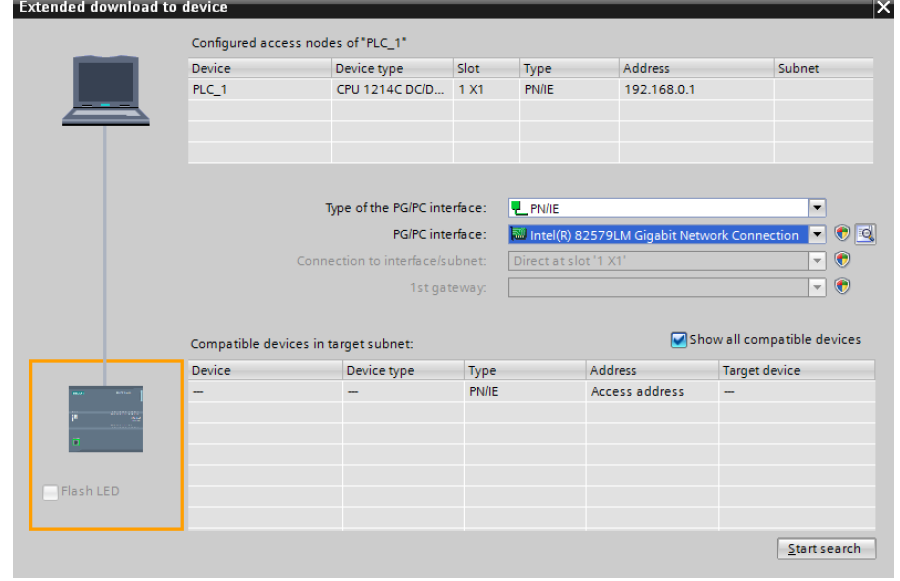
Choose PN/IE and Intel® 82579LM Gigabit Network Connection. And click theStart Search button.
Search is completed. Choose PLC_2 device and click the Load button.
Choose Stop all and click Load again. And then click Finish button. Finally, you completed compiling process.
Now click this icon for simulation .If you open I0.0(START) input. 30 seconds later,our motor will be loaded. Let’s do that.
Subscribe to:
Comments (Atom)