February 1, 2019

S7-1200 PLC configuration,example creation,monitoring and downloaiding in the PLC.


S7-1200 PLC configuration,example creation,monitoring and downloaiding in the PLC.

First, we are choosing TIA Portal V13 from our Start Menu and double click and open the program.


Here is our portal view. Now we need to choose Create new project icon. You can change your project name also your path and you can add your comments. And click the create button.


 We completed Start section. Now we need to configure our device. First clickconfigure a device.


Choose  add  new  device. And  click  SIMATICS7-1200  CPU  its  model  and  type respectively. Your  CPU type  can  change  from  one  to  another. So  you  need  to control on your PLC Training Set. Its  CPU panel will give needed information to you. When  you   are   confident  to  select  true  choice. Click  add  button. And  go  on.


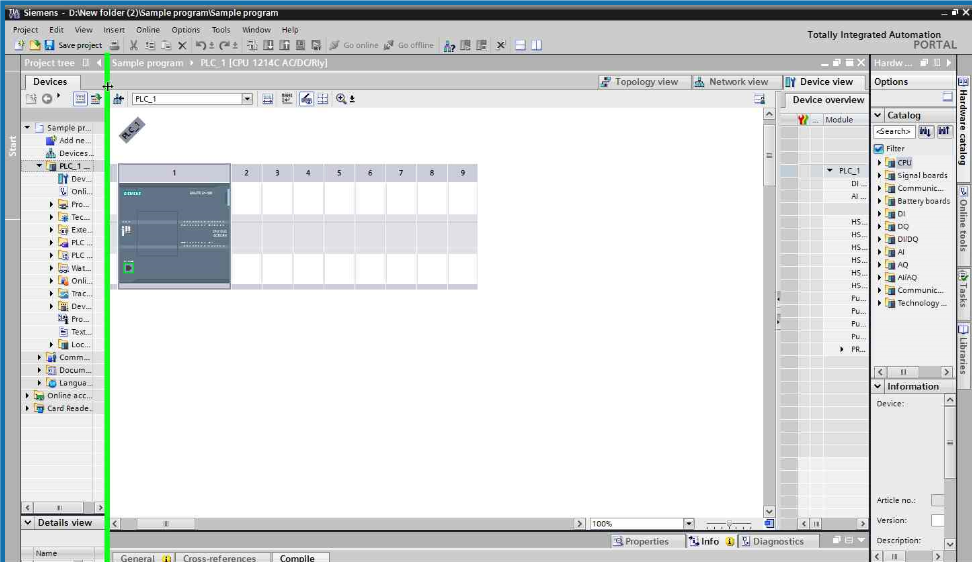
The  CPU  added. You can see at the following figure. Now  choose  Program blocks and click double Main [OB1].


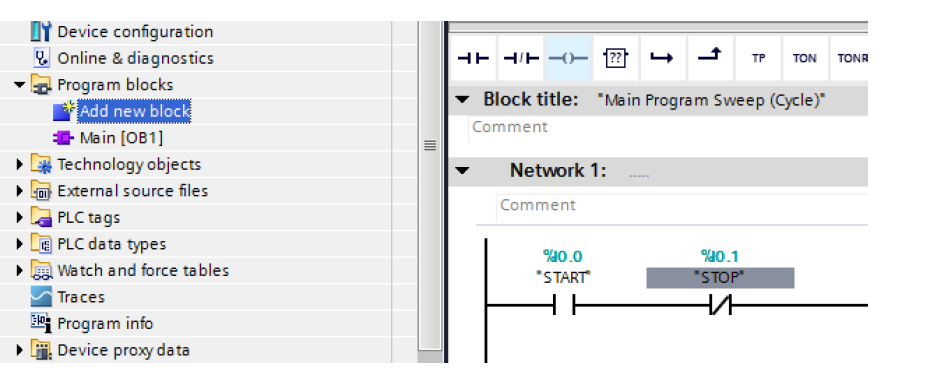
Here is the LADDER diagram window. Now we are ready to add our operations such as bit logic, timer,counter,comparator etc. We will use Basic Instructions part


Its label will be START button. We will adjust its label and adress.


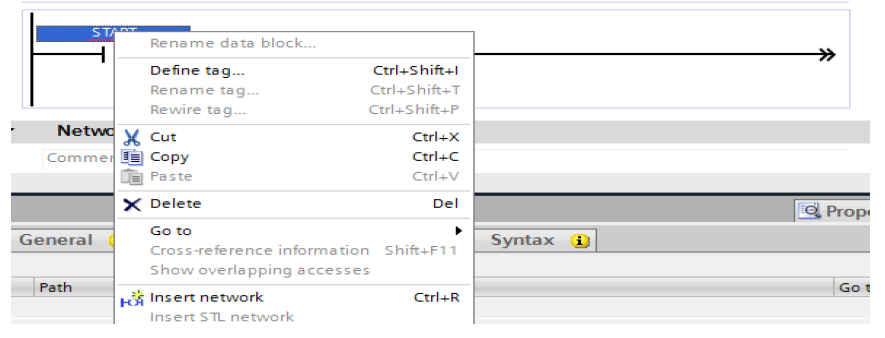
Click right button on mouse. And choose Define tag.


Specify your information and click the Define button. Start button’s name is I0.0


Do the same thing like START button with STOP button. Stop button’s name will be I0.1 This is your choice. You have no constraints on it.


Now double click Add new block. Because we need Timer for our problem.


 /////////////////////////////////////////////////////////////////////////////////////////////////////////////
Choose  Data Block. From Type, so you  can   choose whatever  you  need. And we 
 choosed  IEC_Timer. And click OK.


Our Data_block_1[DB1] is  added. Double  click Main [OB1] and  turn  back our LAD diagram.


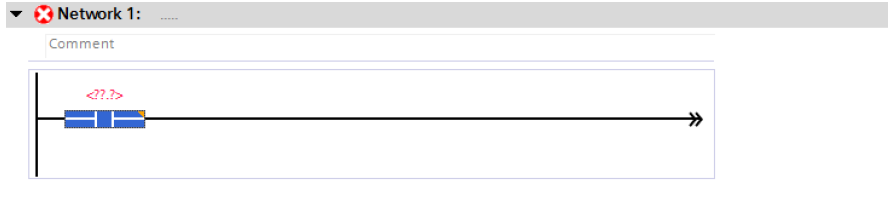
Add TON timer relay from Basic Instructions is selected. And click unknown information on and under the timer. Our time is milisecond at our programme. You need to give attention. Also we will give its label ‘’Data_block_1’’. You can see our explanations at the following figures.


/////////////////////////////////////////////////////////////////////////////////////////////////////////////////////////

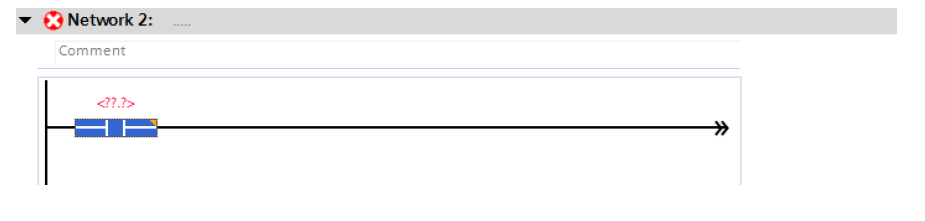
Now we need to use Network 2.


 ////////////////////////////////////////////////////////////////////////////////////////////////////////////////////
Add new button. Its our timer’s output contact.


___________________________________________________________________
We will add output coil. Its label will be MOTOR.


______________________________________________________________________________

Click  right  with  Mouse  and  specify  its  properties  and  click  Define  button  again.


This icon is downloading our program to CPU. Also you know Main[OB1] is interface between PC and CPU. Click download icon and continue.

Choose PN/IE and Intel® 82579LM Gigabit Network Connection. And click theStart Search button.
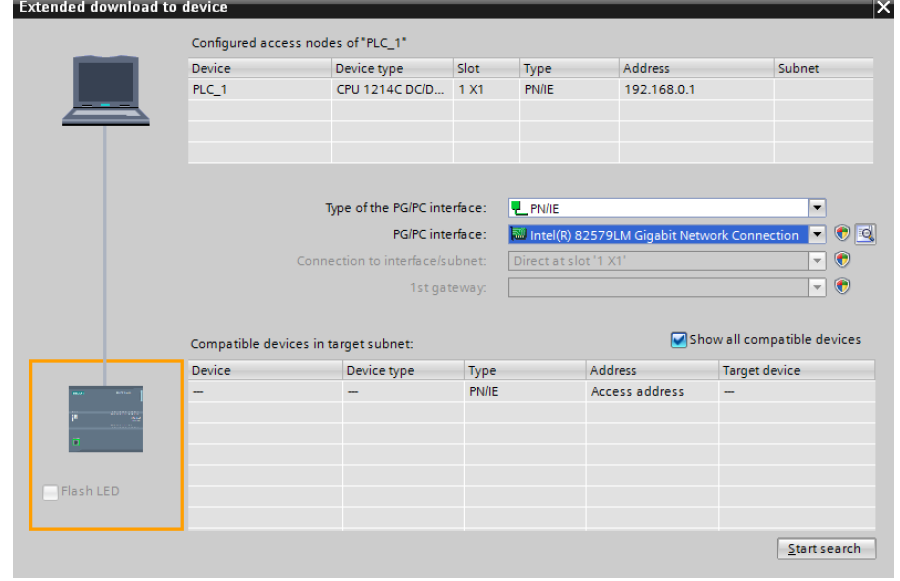


Search is completed. Choose PLC_2 device and click the Load button.


Choose  Stop all  and  click Load  again. And  then  click  Finish  button. Finally, you completed compiling  process.


Now click this icon for simulation .If you open I0.0(START) input. 30 seconds later,our motor will be loaded. Let’s do that.




January 31, 2019

S7-1200 Configuration in TIA portal software.


S7-1200 Configuration in TIA portal software.
This is PLC Program for the S7-1200 PLC configuration in TIA portal software.


Problem Description:-
Write the PLC program for the S7-1200 PLC configuration in the TIA portal software.

Problem Diagram


////////////////////////////////////////////////////////////////////////////////////////////
Problem Solution
Open TIA portal software in the PC or laptop. Create new project in the software and take hardware from the hardware list.
Select required PLC model and save the configuration.
Program
Here is PLC program for the S7-1200 PLC configuration in the TIA portal software.

List of inputs/outputs
Inputs List:-
Outputs List:-
M memory:-


Configuration for the S7-1200 PLC in TIA portal software.

Open TIA portal software from your desktop and create new project in the software. Once project is created, select devices (controllers, HMI. PC system, Drives) from the list.

After selecting controller, select CPU. 


//////////////////////////////////////////////////////////////////////////////////////////////////////////////////
Select required PLC model from the list as shown in figure (Consider here CPU 1214 
ACDCRLY)


//////////////////////////////////////////////////////////////////////////////////////////////////////////////////////////
Select serial no of the PLC as shown in figure (available on hardware).


Select add option and save the program


Your configured CPU (PLC) is here!!


Note:-Application is only for learning and educational purpose .Above application may be different from actual application. This application can be done in other PLC also. Users are responsible for correct operation of the PLC system and for any possible injuries and or material damages resulting from the use of this program. It is necessary to take care of safety during implementation, installation, maintenance and operation.

All parameters and graphical representations considered in this example are for explanation purpose only, parameters or representation may be different in actual applications. Also all interlocks are not considered in the application.

S7-1200 Configuration in TIA portal software.


S7-1200 Configuration in TIA portal software.
This is PLC Program for the S7-1200 PLC configuration in TIA portal software.


Problem Description:-
Write the PLC program for the S7-1200 PLC configuration in the TIA portal software.

Problem Diagram


////////////////////////////////////////////////////////////////////////////////////////////
Problem Solution
Open TIA portal software in the PC or laptop. Create new project in the software and take hardware from the hardware list.
Select required PLC model and save the configuration.
Program
Here is PLC program for the S7-1200 PLC configuration in the TIA portal software.

List of inputs/outputs
Inputs List:-
Outputs List:-
M memory:-


Configuration for the S7-1200 PLC in TIA portal software.

Open TIA portal software from your desktop and create new project in the software. Once project is created, select devices (controllers, HMI. PC system, Drives) from the list.

After selecting controller, select CPU. 


//////////////////////////////////////////////////////////////////////////////////////////////////////////////////
Select required PLC model from the list as shown in figure (Consider here CPU 1214 
ACDCRLY)


//////////////////////////////////////////////////////////////////////////////////////////////////////////////////////////
Select serial no of the PLC as shown in figure (available on hardware).


Select add option and save the program


Your configured CPU (PLC) is here!!


Note:-Application is only for learning and educational purpose .Above application may be different from actual application. This application can be done in other PLC also. Users are responsible for correct operation of the PLC system and for any possible injuries and or material damages resulting from the use of this program. It is necessary to take care of safety during implementation, installation, maintenance and operation.

All parameters and graphical representations considered in this example are for explanation purpose only, parameters or representation may be different in actual applications. Also all interlocks are not considered in the application.

December 27, 2018

ON/OFF PLC Output with Switch using S7-1200 PLC

Explanation:-
When Start switch (SW1) will be pressed then Output (Lamp 1) will be on and Output (Lamp 1) will be turned off if switch will be turned off.


Program:- Write the ladder Logic for Above application.
Input List:
Start Switch-I0.0

Output List:
Lamp 1 -Q0.0


ON/OFF PLC Output with Switch using S7-1200 PLC


ON/OFF PLC Output with Switch using S7-1200 PLC

Explanation:-
When Start switch (SW1) will be pressed then Output (Lamp 1) will be on and Output (Lamp 1) will be turned off if switch will be turned off.


Program:- Write the ladder Logic for Above application.
Input List:
Start Switch-I0.0

Output List:
Lamp 1 -Q0.0


ON/OFF PLC Output with Switch using S7-1200 PLC


Motor Start/Stop operation with trip indication lamp

Application:-There is one machine in the factory, we want to start/stop motor using push button g from the panel. Give motor ON lamp and motor trip lamp on the panel. When motor is running ON lamp should be ON and if motor trip due to some problem, trip lamp should be ON. Write the PLC program in LAD and FBD language.
Solution:-Here we will make PLC program in the PLC so operator can operate motor from the panel and get indication on the panel. And also we will take inputs signal and outputs for our application

Diagram:-

 
PLC Program:-Write the PLC program from above application using LAD diagram language.


PLC program explanation:-
As per our application we wrote PLC program. In this program we have considered following inputs and outputs for our application. We can use any make PLC for our application.
Inputs:-
Start Button:-I0.0
Stop Button:-I0.1
Trip Input:-I0.2
Outputs:-
Motor:-Q0.0
Motor On Lamp: Q0.1
Trip Lamp:-Q0.2
Network 1:-In this network we are starting and stopping motor by push button. By pressing Start (I0.0) motor can be started and by pressing stop PB (I0.1), motor (Q0.0) can be stopped.
Network 2:-In this network we wrote the logic for motor ON lamp or indication (Q0.1). SO when motor is running, Motor ON lamp is also ON.
Network 3:-For safety purpose we have considered here trip lamp (Q0.2). So when trip signal (I0.2) is ON, trip lamp is also ON.

3 Phase Motor Control using PLC Ladder Logic

3 Phase Motor Control using PLC

This is PLC Program for Forward and Reverse control for 3 Phase Asynchronous Motor.Lear how to write PLC logic for 3 phase motor control logic using PLC.

Click on image for more detail
https://instrumentationtools.com/plc-ladder-logic-for-3-phase-asynchronous-motor-control/

Water filling and Discharging Process

Water filling and Discharging Process

Water filling and discharging process used in idustry.Write PLC logic for the filling and discharging process using ladder language.

Click here for more detail.
https://instrumentationtools.com/plc-program-for-water-filling-and-discharging-process/

Water filling and Discharging Process

Water filling and Discharging Process

Water filling and discharging process used in idustry.Write PLC logic for the filling and discharging process using ladder language.

Click here for more detail.
https://instrumentationtools.com/plc-program-for-water-filling-and-discharging-process/

December 26, 2018

Explain equal instruction using example


Explain equal instruction using example

Application:-Explain Equal instruction in the PLC. Write PLC program for explanation using ladder diagram language.

Components:-Programmable logic controller, HMI panel, wires, 24 VDC lamp, 24 VDC power source.

Diagram:-


Explanation:-

Consider a simple example for explanation of equal instruction in the PLC. Here we have taken simple HMI (Human Machine Interface) for display and programmable Logic Controller (PLC) for programming. Take two value set value 1 and set value 2 for example. Here if both the value in the set value 1 and set value 2 equal then lamp will be ON. So we need to use == instruction for above example.

Enter 50 value in the set value 1 box and enter 50 value in the set value 2 box so lamp should be ON and if someone enter 25 value in the set value 2 box, lamp should not be ON.


PLC program:-

Write the ladder program for above application using ladder diagram language. Here for ladder logic we can use any supported PLC system like S7-1200, S7-300, S7-1500 or any other PLC which can support this instruction. For PLC logic we need digital inputs and outputs.

For our application lamp is digital output. Two set values from the HMI are input words.

Digital Output:-

Lamp=Q0.0

M Memory:-

Set value 1:-MW10

Set Value 2:-MW12


PLC program Explanation:-

In network 1 we tow values are compared with comparison instruction. Set value 1 (MW) is compared with Value 2 (MW12).Hence if both values are equal, lamp (Q0.0) will be ON.

In comparator instruction, two operands are compared, we can set data time in comparator instruction.